Text to Speech Google Docs & Web Pages
When reading is hard, press Play and follow the highlight.
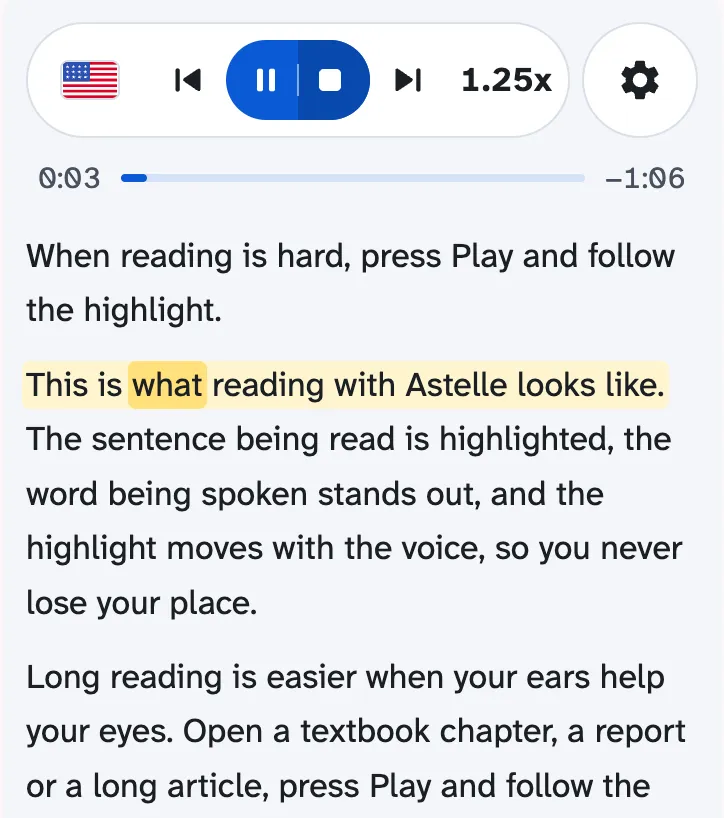
This is what reading with Astelle looks like. The sentence being read is highlighted, the word being spoken stands out, and the highlight moves with the voice, so you never lose your place.
Long reading is easier when your ears help your eyes. Open a textbook chapter, a report or a long article, press Play and follow the highlight: the voice sets the pace, and your attention stays on the page instead of drifting off it. Students get through assigned reading without rereading the same line. People who find reading hard, or find it hard to focus, let the voice carry the text while their eyes follow. Writers hear their drafts read back and catch clumsy sentences by ear. Astelle reads Google Docs and web pages in natural voices, in 31 languages, at the speed you choose. Start from any paragraph with one click, switch tabs and it keeps reading, come back later and it picks up where you stopped.
Nothing to set up and no account to create: add it to Chrome, open the document you’ve been putting off and press Play. It’s free to use. And if you followed the highlight all the way down here, you’ve just read a whole page with your eyes and ears together. That’s Astelle.
How to do text to speech on Google Docs
To do text to speech on Google Docs, add Astelle to Chrome, open your doc, click the Astelle icon and press Play. Astelle is a Chrome extension for computers that reads Google Docs and web pages aloud and highlights the sentence you hear.
1. Add Astelle to Chrome. In the Chrome Web Store, Astelle is called Text to Speech Google Docs.
2. Open your Google Doc in Chrome on your computer.
3. Click the Astelle icon to the right of the address bar. The Astelle panel opens at the side of the window. Don't see the icon? Click Extensions (the puzzle piece) and pin Text to Speech Google Docs.
4. Press Play. Astelle starts from the first paragraph you can see and highlights the sentence you hear. To start somewhere else, point at a paragraph and click its Play button.
Text to speech already in Google Docs and Chrome
Google Docs and Chrome have their own ways to read text aloud, and each one suits a different job.
| Option | How to start | What you need | Best for |
|---|---|---|---|
| Audio in Google Docs | Tools > Audio > Listen to this tab | An eligible Google Workspace or Google AI plan, and Google Docs on a computer | Listening to a doc when your plan includes Audio |
| Reading mode in Chrome | Right-click a page, choose Open in reading mode, then press Play | Chrome; Reading mode doesn't work on every site | Listening to an article in a separate reading view |
| A screen reader | ChromeVox, NVDA, JAWS or VoiceOver; in Google Docs, Tools > Accessibility settings > Turn on screen reader support | A screen reader set up on your computer | Using the whole computer by ear |
| Astelle | Click the Astelle icon and press Play | Chrome on a computer; no plan, no sign-up | Reading and listening at once in Google Docs and on web pages, with the highlight right in the text |
Read and listen at the same time
Astelle highlights the sentence you hear right in your Google Doc or on the web page, so your eyes can follow the voice. The natural English voices Hannah, Michael and Emma and the voices on your computer also highlight the word being spoken. Other voices, including Chrome's own Google voices, highlight only the sentence, and the panel tells you so.
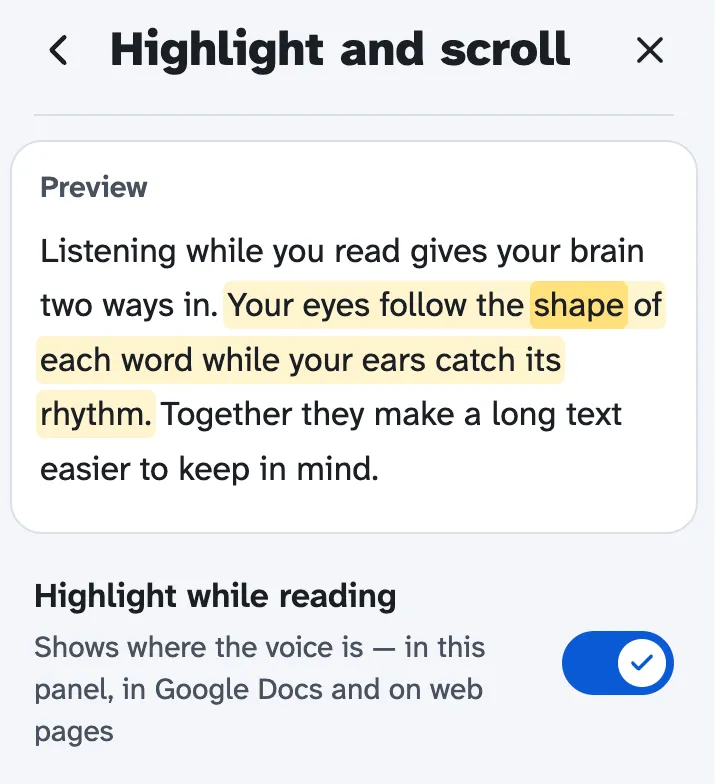
The text scrolls along with the voice, and if you scroll away in a Google Doc or in the panel, Back to reading takes you back. Pick the highlight style you like in Settings.
Read web pages aloud
Astelle reads websites aloud the same way it reads Google Docs: open a page, click the Astelle icon and press Play. It works on news articles, online textbooks, course pages and web novels, and highlights the sentence you hear right on the page. Point at a paragraph to see its Play button and start from there.
Astelle also reads PDFs opened from a web link that ends in .pdf, as long as the PDF has selectable text and no password. It can't read PDFs embedded in a page, Chrome's own pages, the Chrome Web Store or files opened from your computer.
What the Astelle read aloud Chrome extension does
Natural voices in your language
Natural voices cover 31 languages, including Spanish, French, German, Portuguese, Hindi, Arabic, Japanese and Korean, and need a graphics card; the natural English voices Hannah, Michael and Emma don't. Play a demo and download the one you like, or start right away with the voices on your computer: Astelle picks one for the language of your text.
A reader panel that's easy on the eyes
The side panel shows the text you're hearing: make it Large or Spacious, turn on the dark theme, or set the text in OpenDyslexic, Lexend or Andika.
Start anywhere, repeat a paragraph
Start from any paragraph in a Google Doc or on a web page, or put one on a loop with Repeat paragraph.
Keeps reading, picks up where you left off
Close the panel or switch tabs and Astelle keeps reading, and when you come back to a document later it continues from where you stopped, as long as the text hasn't changed.
Your speed and keyboard shortcuts
Set the speed from the panel, or use the keyboard: Alt+O starts and stops reading, Alt+P pauses and resumes (Option on a Mac).
No sign-up, free to use
There's no account to create: add Astelle to Chrome and press Play — Astelle is free to use.
Who Astelle is for
Text to speech for students
Read and listen at the same time to get through textbooks, articles and notes while the highlight keeps your place.
Text to speech for dyslexia and low vision
When reading is hard — with dyslexia, low vision or tired eyes — let Astelle read to you, follow the highlight, and make the panel text Large, Spacious or set in OpenDyslexic.
Proofread by listening
Writing a report, an article or a paper in Google Docs? Hear how it sounds before you share it: skipped words and clumsy sentences are easier to catch by ear.
What happens to your text
Astelle sends the text it is reading to the Astelle server over an encrypted connection, so numbers, dates and abbreviations are read correctly. The server prepares the text for the voice and doesn't save it. To remember your place, Astelle keeps the position and a fingerprint of the paragraph, not the text itself.
You can turn server text processing off in Settings → Listening. There's no Astelle account.
If you choose one of Chrome's own Google voices, Chrome sends the text to Google to speak it.
Questions and answers
How do I do text to speech on Google Docs?
Add Astelle to Chrome, open your Google Doc, click the Astelle icon and press Play. Astelle reads from the first paragraph you can see and highlights the sentence you hear. To start somewhere else, point at a paragraph and click its Play button, or select the text you want to hear and press Play in the panel. You can also start and stop reading with Alt+O.
Does Google Docs have text to speech?
Yes, if your plan includes it. Google Docs has a built-in Audio feature under Tools > Audio > Listen to this tab, and Google Docs Help says it requires an eligible Google Workspace or Google AI plan. Astelle reads Google Docs without a special plan or an Astelle account, and it highlights the text as it reads. It reads web pages too.
Why is my text-to-speech not working on Google Docs?
If you use Audio in Google Docs, check your plan first: the feature requires an eligible Google Workspace or Google AI plan, so it may not be available on your account. If you use Astelle and it doesn't start reading in a Google Doc, reload the tab and press Play again; the Astelle panel shows a Reload button when a tab needs it. If something is off with the sound, the panel says what happened — for example, when your computer has no voice for the document's language — and shows how to add one.
Can Google Docs read to me on mobile?
Not with Astelle: it's an extension for Chrome on a computer, and there is no app for phones. On a phone, your phone's own tools can read text on your screen aloud: Select to Speak on Android and Speak Screen on iPhone.
Is text to speech free?
Yes, Astelle is free to use: there's no subscription, no paywall and no account to create. The Audio feature in Google Docs, by contrast, requires an eligible Google Workspace or Google AI plan.
Can Chrome read a webpage aloud?
Yes. Chrome's Reading mode can read a page aloud in its own reading view: right-click the page, choose Open in reading mode and press Play. Astelle reads the web page itself: click the Astelle icon on an article and press Play, and Astelle highlights the sentence you hear right on the page. It can't read Chrome's own pages or the Chrome Web Store.
How do I have highlighted text read aloud?
Select the text, then press Play in the Astelle panel or press Alt+O. Astelle reads only the part you selected, in Google Docs and on web pages. As it reads, it highlights the sentence you hear.
What's the best text-to-speech voice?
It depends on your language and your computer. In Astelle, the natural English voices Hannah, Michael and Emma highlight each sentence and word. For 31 languages, the natural voices Leo, Max, Mia and Ella highlight each sentence and need a graphics card; if your computer can't run one, Astelle tells you and keeps reading with another voice. To pick a voice, click the language flag at the top of the Astelle panel: the voices already on your computer start right away, and natural voices have a demo you can play first.
Who makes Astelle?
Astelle is made by a founder who reads and listens at the same time every day — long Google Docs, reports and articles. That habit shaped the details: the highlight stays in the text you're reading, and closing the panel doesn't stop the voice. Astelle began as the Text to Speech Google Docs extension and keeps that name in the Chrome Web Store.
Listen to your next Google Doc
Astelle reads Google Docs and web pages aloud and highlights what you hear.
Add to Chrome